OpenClaw is an open source AI assistant that you install on your computer or server and then message from WhatsApp, Telegram or Discord. Peter Steinberger released the first version in November 2025. The project first gained traction as Clawdbot, became Moltbot on January 27, 2026, and then OpenClaw at the end of January 2026.
The official site is openclaw.ai, the documentation lives at docs.openclaw.ai and the code is on GitHub.
Where OpenClaw comes from: Clawdbot, Moltbot, then OpenClaw
Peter Steinberger, an Austrian developer, released the project in November 2025 (Wikipedia). He built it on top of Clawd, an AI assistant he had developed whose name was a play on Claude, Anthropic's model. The project then spread under the name Clawdbot.
According to the project's official announcement, Anthropic's legal team asked for the name to be reconsidered because it was too close to Claude. On January 27, 2026, Steinberger renamed the project Moltbot, a name picked with the community on Discord: lobsters molt to grow. He soon decided Moltbot was awkward to pronounce. On January 29, 2026, the team announced the name OpenClaw on the project blog: "Open" for open source and the community, "Claw" to keep the lobster claw from the earlier names.
The code remains under the MIT license. On February 14, 2026, Steinberger announced he was joining OpenAI (TechCrunch) and the creation of a nonprofit, the OpenClaw Foundation, to run the project after his departure.
| Name | Period | Reason for the change |
|---|---|---|
| Clawdbot | until January 27, 2026 | Anthropic asked for a name further from Claude |
| Moltbot | January 27 to late January 2026 | The creator found the name hard to pronounce |
| OpenClaw | since late January 2026 | Current name |
How OpenClaw works
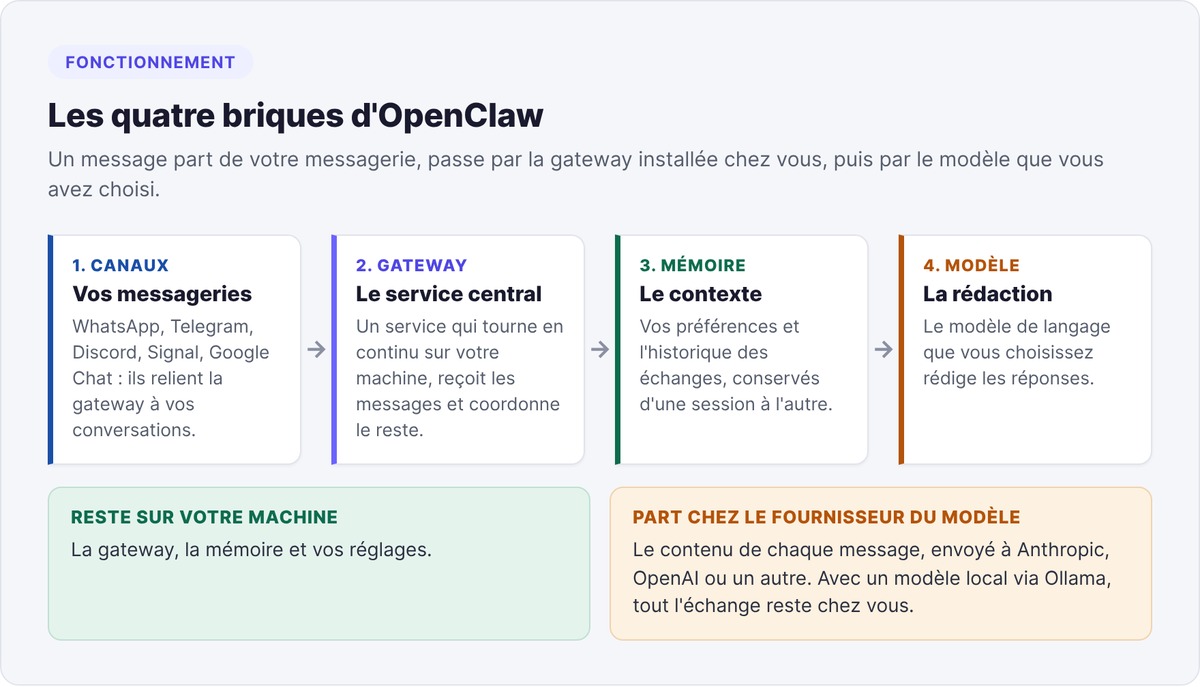
OpenClaw is built from four components. The gateway, a service that runs continuously on your machine, receives messages and coordinates everything else. Channels connect the gateway to your messaging apps, including WhatsApp, Telegram, Discord, Signal and Google Chat. Memory keeps your preferences and conversation history from one session to the next. The language model, which you choose, writes the replies.
The gateway, the memory and your settings stay on your machine. The content of each message, however, is sent to the model provider (Anthropic, OpenAI or another) to generate the reply. With a local model, through Ollama for example, the entire exchange stays on your side.
What you can do with OpenClaw
You can use OpenClaw to:
- get answers to questions from WhatsApp, Telegram or Discord
- summarize a long article or document
- schedule context-aware reminders
- draft and rework text
- look up information without leaving your messaging app
- manage your daily tasks in plain language
OpenClaw keeps track of conversations. It remembers your preferences and past exchanges, so you don't have to repeat the context with every request.
Why choose a self-hosted setup (or not)
Self-hosting OpenClaw lets you choose the model and modify the source code. The trade-off is a more technical installation and a machine that has to stay on around the clock. To compare this choice with a hosted chatbot, read our analysis OpenClaw vs ChatGPT.
Technical requirements and accounts you need
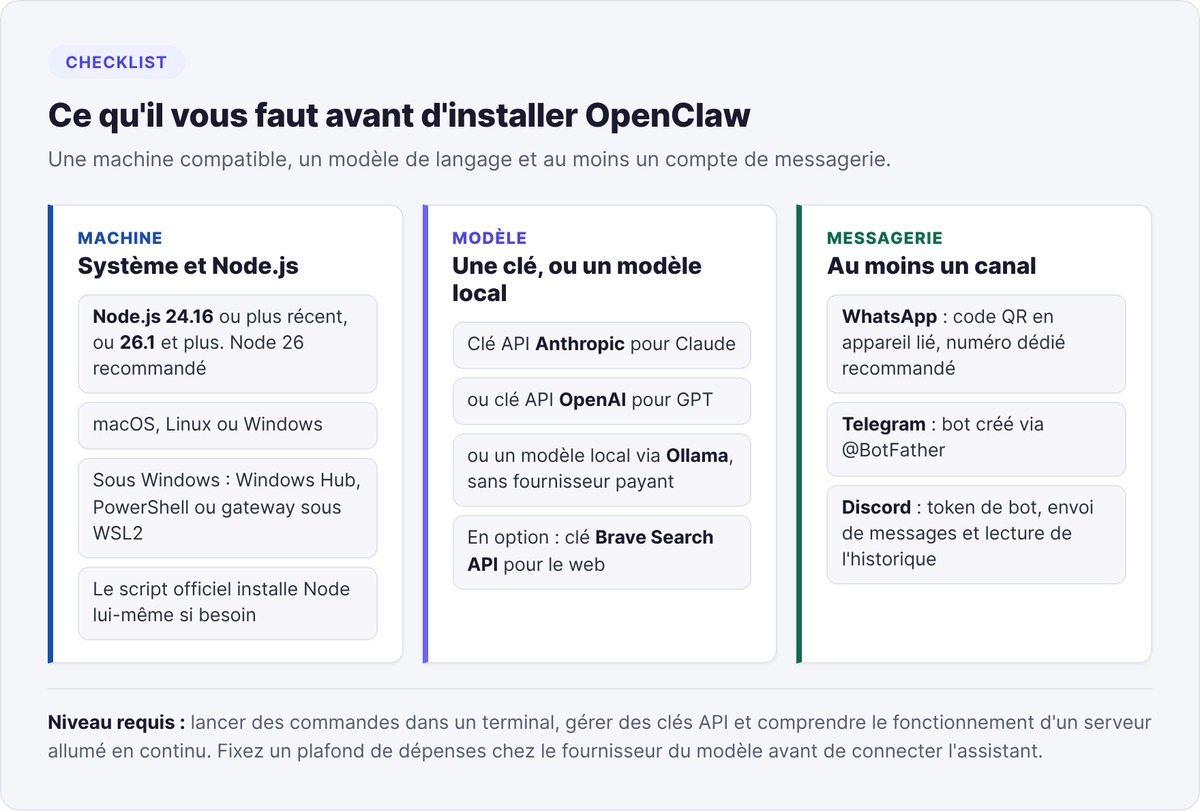
Before installing, gather the following.
System requirements (macOS, Linux, Windows)
- Node.js 24.16 or later, or Node.js 26.1 and above, with Node 26 recommended (see the Node.js compatibility page). The official install script installs Node itself if needed.
- a macOS, Linux or Windows system
On Windows, you can choose between the Windows Hub app, a PowerShell install and a gateway running under WSL2 (Windows Subsystem for Linux), according to the installation guide.
Required API keys (Anthropic, OpenAI, Brave)
To run the assistant, you need:
- an Anthropic API key for Claude, from console.anthropic.com
- or an OpenAI API key for GPT models
- or no paid provider at all, if you run a local model with Ollama
- optionally, a Brave Search API key for web searches
Model providers bill by usage, so your monthly cost depends on the number of messages and the model you pick. Set a spending cap in the provider's console before connecting the assistant.
Supported messaging accounts (WhatsApp, Telegram, Discord)
- WhatsApp: connect by QR code as a linked device, like WhatsApp Web. The maintainers recommend a dedicated number but also support your personal one
- Telegram: create a bot through @BotFather in a few minutes
- Discord: a bot token with permissions to send messages and read message history
Technical skills needed to get started
You should know how to:
- run commands in a terminal
- manage API keys
- understand how an always-on server works
The onboarding wizard then walks you through each step, from gateway configuration to connecting your messaging channels.
Installing and configuring OpenClaw
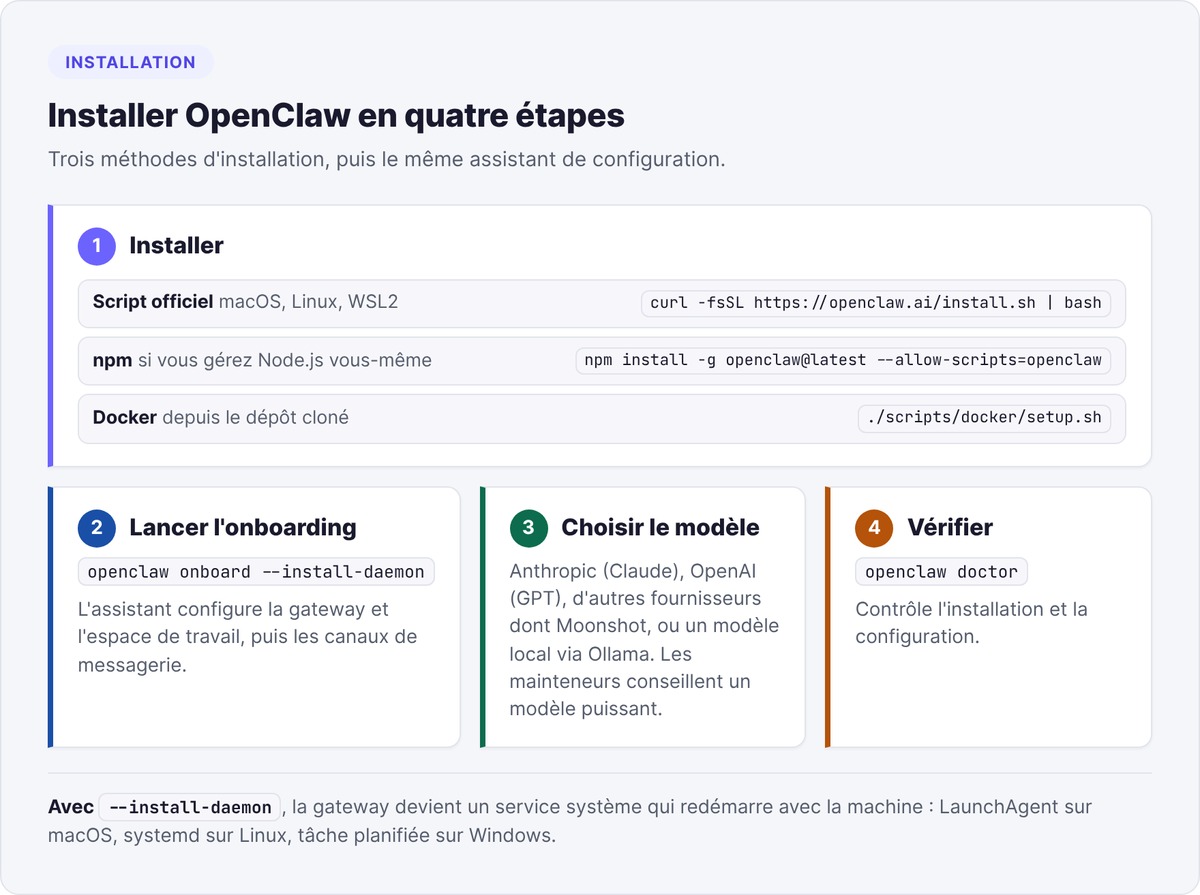
Three installation methods lead to the same result.
Installing with the script, npm or Docker
With the official script (macOS, Linux, WSL2):
curl -fsSL https://openclaw.ai/install.sh | bash
On Windows, in PowerShell:
iwr -useb https://openclaw.ai/install.ps1 | iex
With npm (if you manage Node.js yourself):
npm install -g openclaw@latest --allow-scripts=openclaw
With Docker (for a containerized deployment), from the repository root:
git clone https://github.com/openclaw/openclaw.git
cd openclaw
./scripts/docker/setup.sh
Running the onboarding wizard
Once OpenClaw is installed, launch the setup wizard:
openclaw onboard --install-daemon
The wizard first has you configure the gateway and the workspace. It then moves on to messaging channels.
Choosing the LLM (Claude, GPT, local model)
During onboarding, you choose your model:
- Anthropic (Claude)
- OpenAI (GPT)
- other providers, including Moonshot (Kimi K2.5)
- a local model through Ollama
The maintainers point out that prompt injection remains an unsolved problem across the whole industry, and they advise using a strong model.
With a Claude Pro or Max subscription, you can sign in through Claude Code, in which case usage counts against your subscription limits. The maintainers still recommend an API key for shared automation, and they warn in OpenClaw's Anthropic documentation that Anthropic can change its terms for third-party tools at any time.
Installing as a background service
The --install-daemon option registers the gateway as a system service: a LaunchAgent on macOS, systemd on Linux, a scheduled task on Windows. The assistant then restarts with the machine. To check the installation, run openclaw doctor.
Connecting to platforms and security
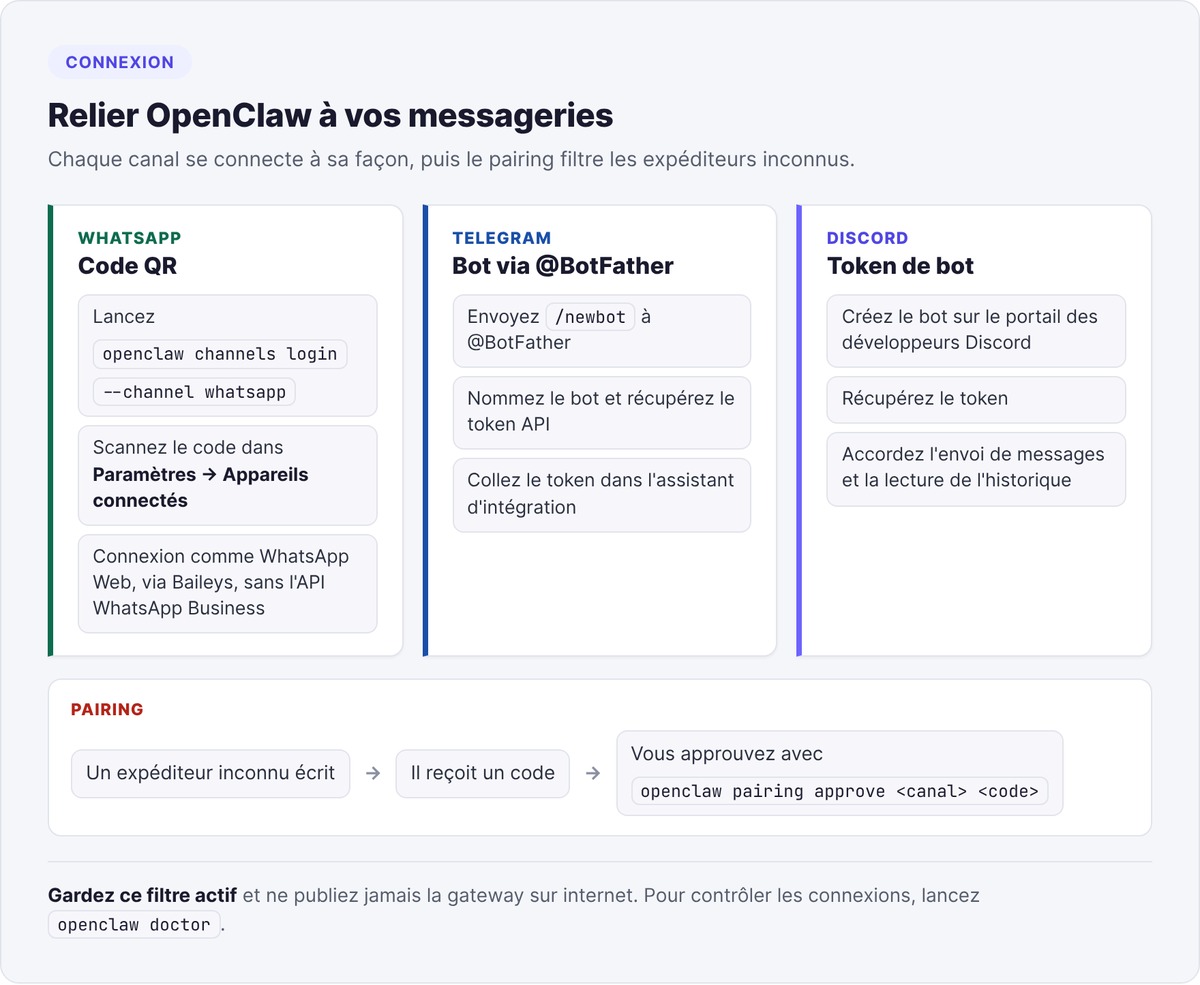
After installation, connect OpenClaw to your messaging apps.
Connecting to WhatsApp with a QR code
Run openclaw channels login --channel whatsapp in the terminal. A QR code appears. On your phone, open WhatsApp, go to Settings → Linked devices and scan the code. OpenClaw then connects the same way WhatsApp Web does, using the Baileys library rather than the WhatsApp Business API.
Creating a Telegram bot with BotFather
Search for @BotFather in Telegram and send /newbot. Name your bot and copy the API token. Paste that token into the OpenClaw onboarding wizard when it asks for it.
Connecting Discord and configuring intents
Create a bot in the Discord Developer Portal. Copy the token, then grant the bot permissions to send messages and read message history.
Pairing and security policies
With the pairing policy, an unknown sender receives a code, and you approve it with openclaw pairing approve <canal> <code>. Keep this filter on. Opening direct messages to everyone requires setting dmPolicy: "open" and allowFrom: ["*"], which means any stranger can message an agent that has access to your machine.
Never expose the gateway to the internet. Protect your API keys with spending caps, and rotate them if you suspect a leak. Keep OpenClaw up to date: researchers have documented API keys stored in plain text, thousands of publicly exposed instances and the CVE-2026-25253 vulnerability, which allowed one-click remote code execution. The team patched it at the end of January 2026, according to SonicWall. You'll find these risks covered in detail in our comparison of OpenClaw alternatives.
Checking the gateway and channel status
Once your connections are set up, run openclaw doctor to check the installation and configuration. If the assistant stops responding, first make sure the machine is running and the gateway service is up.
OpenClaw, ChatGPT or an alternative?
Pick your next read based on what you need:
- compare OpenClaw with a hosted chatbot, costs included: OpenClaw vs ChatGPT
- find a safer or lighter agent: open source alternatives to OpenClaw
- hand off hosting your agent: our Zo Computer review
- get several agents working together: Paperclip and AI agent orchestration
To code with an agent, read our definition of Claude Code. For more tools, check out our selection of AI tools for startups and our guide to Claude Managed Agents.
FAQ
Why was OpenClaw called Clawdbot, then Moltbot?
The name Clawdbot was a play on Claude, Anthropic's model, and Anthropic's legal team asked for it to be reconsidered. Peter Steinberger renamed the project Moltbot on January 27, 2026, a nod to lobsters molting to grow. He dropped that name a few days later because he found it hard to pronounce, and settled on OpenClaw at the end of January 2026.
Who created OpenClaw?
Peter Steinberger, an Austrian developer, released the first version in November 2025. In February 2026, he joined OpenAI and announced the OpenClaw Foundation, a nonprofit that now runs the project. The code remains under the MIT license.
Does OpenClaw run on Windows?
Yes. On Windows, you can install OpenClaw with the Windows Hub app, the official PowerShell script or a gateway under WSL2. You need Node.js 24.16 at minimum, ideally Node 26.
Can you use OpenClaw without an Anthropic API key?
Yes. OpenClaw works with an OpenAI key, other providers such as Moonshot, or a local model through Ollama with no API bill. With a Claude Pro or Max subscription, you can also sign in through Claude Code, within your subscription limits and Anthropic's terms.
Do you need a dedicated WhatsApp number for OpenClaw?
The maintainers recommend one: a separate number keeps your personal conversations apart from the assistant's. You can still link your personal number, since OpenClaw connects as a linked device, like WhatsApp Web.
Does OpenClaw need to run all the time?
Yes, if you want it to reply at any hour. With the --install-daemon option, the gateway becomes a system service and restarts with the machine. If your laptop goes to sleep, the assistant stops responding, whereas a small server or a VPS stays on continuously.