A Claude Code hook is a shell command that runs automatically at a precise moment in a session: just before a tool runs, after a file edit, at startup, or when Claude is waiting on you. Where a skill or a subagent remain smart but fallible collaborators, a hook is a mechanical guarantee: it fires every time, no judgment, no forgetting. You configure them in a settings.json file by tying together an event (like PreToolUse or PostToolUse), a filter, and a script. The result: you can block a dangerous command before it goes out, format your code after every edit, or get a notification when Claude needs you. Here's what a hook is, the types that matter, how to configure them, five hooks ready to copy, and how to use them as guardrails when you don't want to break your production.
What is a Claude Code hook?
A hook is an automatic trigger. You tell Claude Code "when this event happens, run this script," and it does, every time, without Claude having any say in it. That's the fundamental difference with the rest of the ecosystem: a skill and a subagent depend on the model's judgment, a hook is deterministic. It doesn't decide whether to act, it acts.
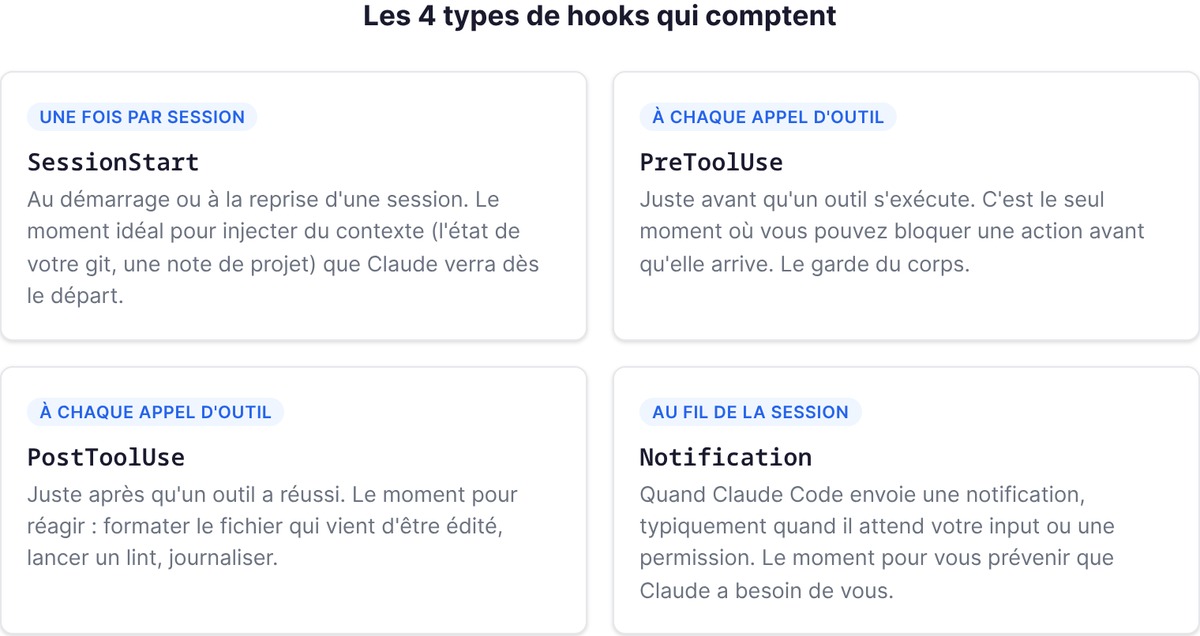
Technically, a hook is a shell command (Claude Code also accepts HTTP endpoints or LLM prompts, but the shell command is the common case and the one we cover here) that runs at a precise point in the session's lifecycle. When the event fires and your filter matches, Claude Code sends the script a JSON object describing what's happening, on standard input. Your script inspects that data, acts, and can return a decision: let it through, or block it.
In practice, the loop is always the same. An event happens. Claude Code checks whether a hook is tied to it and whether its filter matches. If so, it launches your script, passing it, on standard input, a JSON object holding the context: the session ID, the name of the tool involved, its arguments (for example the shell command or the path of the edited file), the working directory. Your script reads that JSON, pulls out what it needs, does its work, then communicates the result through two channels: its exit code and what it writes to standard output. It's that pair (exit code + output) that tells Claude Code whether to continue, block, or ignore. The whole system rests on this mechanism, and once you have it in mind, writing a hook becomes trivial.
Why should a founder care? Because it's the one Claude Code mechanism that gives you guarantees, not probabilities. You can politely ask Claude, via a CLAUDE.md, to "never delete files without confirmation." It will respect that most of the time. "Most of the time" isn't a security policy. A hook, on the other hand, blocks the action every single time. When you're building solo and a stray command can wipe a database or push a secret, that difference between "most of the time" and "every single time" is worth its weight in gold.
A hook serves two broad families of use: automating (formatting, linting, logging, notifying, without thinking about it) and securing (blocking dangerous commands, preventing edits to sensitive files). Both rest on the same mechanism. The first saves you time on the repetitive tasks you forget to do; the second protects you from mistakes you wouldn't have seen coming. A solo founder needs both: nobody else is going to format the code for you, and nobody else is going to catch the stray command before it goes out.
The types of hooks: PreToolUse, PostToolUse, Notification, SessionStart
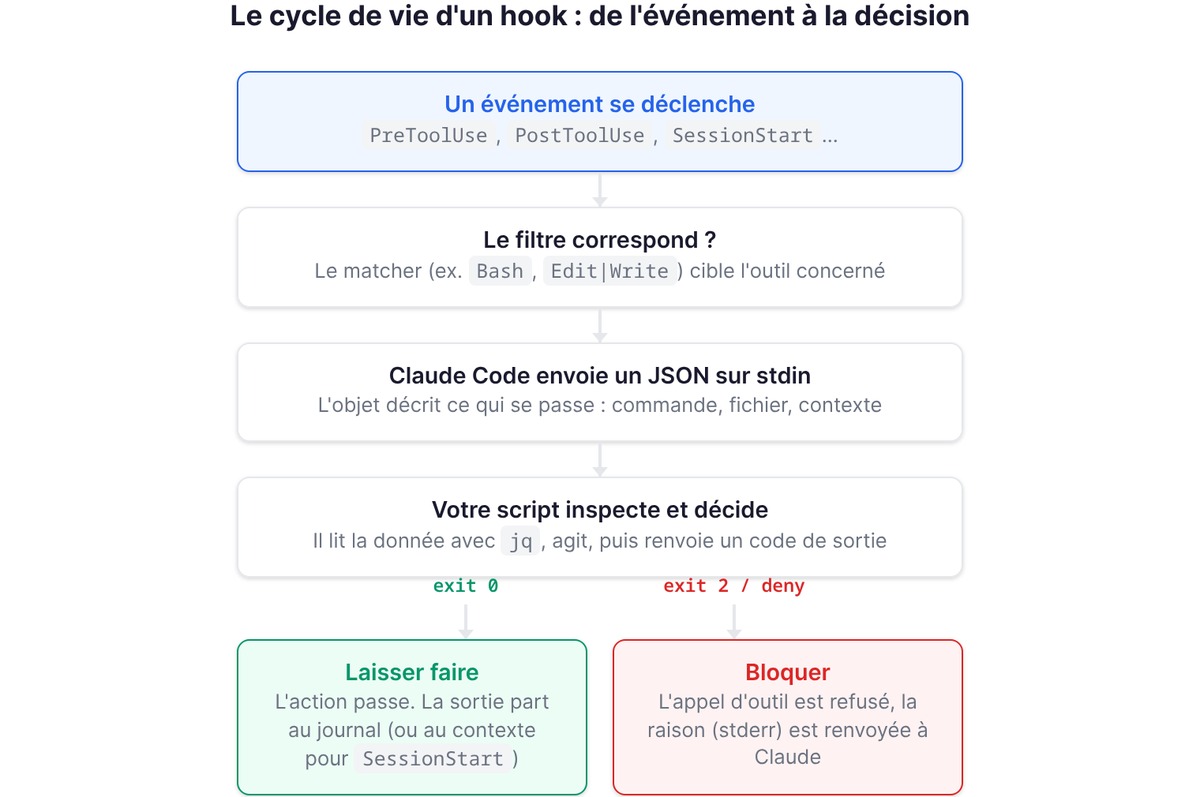
Claude Code fires hooks at many moments, but four events cover most of what you need. You can sort them by cadence.
Once per session:
- SessionStart: at the start or resumption of a session. The ideal moment to inject context (your git state, a project note) that Claude sees from the get-go.
On every tool call, inside Claude's work loop:
- PreToolUse: just before a tool runs. This is the only moment where you can block an action before it happens. The bodyguard.
- PostToolUse: just after a tool has succeeded. The moment to react: format the file that was just edited, run a lint, log.
Throughout the session:
- Notification: when Claude Code sends a notification, typically when it's waiting for your input or a permission. The moment to alert you (sound, message) that Claude needs you.
Those four cover 90% of a founder's needs. But the real list is much longer, and a few other events are worth knowing right now, because they unlock clever uses:
- UserPromptSubmit: the moment you submit a prompt, before Claude processes it. Its output is added to the context, so this is the place to inject up-to-date info on every turn, or to block a prompt that breaks a rule.
- Stop: when Claude finishes its response. The ideal moment to run your test suite or a final check, automatically, as soon as Claude is done coding.
- SubagentStop: when a subagent finishes its work. Useful for reacting to the result of a delegation.
- PreCompact: just before Claude Code compacts the context (when the conversation gets too long). To save a state before context is summarized.
- SessionEnd: when the session closes. To clean up, archive a log, close down cleanly.
There are still others (permissions, MCP tool notifications, directory changes), but you'll discover them as needed. Start with the top four, add Stop and UserPromptSubmit when you want to automate your tests and your context. That's already a very complete setup.
Configuring a hook in settings.json (minimal structure)
Hooks are configured in JSON, in a settings.json file. Three locations, depending on the scope you want:
| File | Scope | Shared |
|---|---|---|
~/.claude/settings.json |
All your projects | No, local to your machine |
.claude/settings.json |
This project | Yes, committable to the repo |
.claude/settings.local.json |
This project | No, gitignored |
For a team guardrail (blocking dangerous commands on this repo), use .claude/settings.json and commit it: everyone benefits. For a personal setting (a notification when Claude is waiting on you), ~/.claude/settings.json.
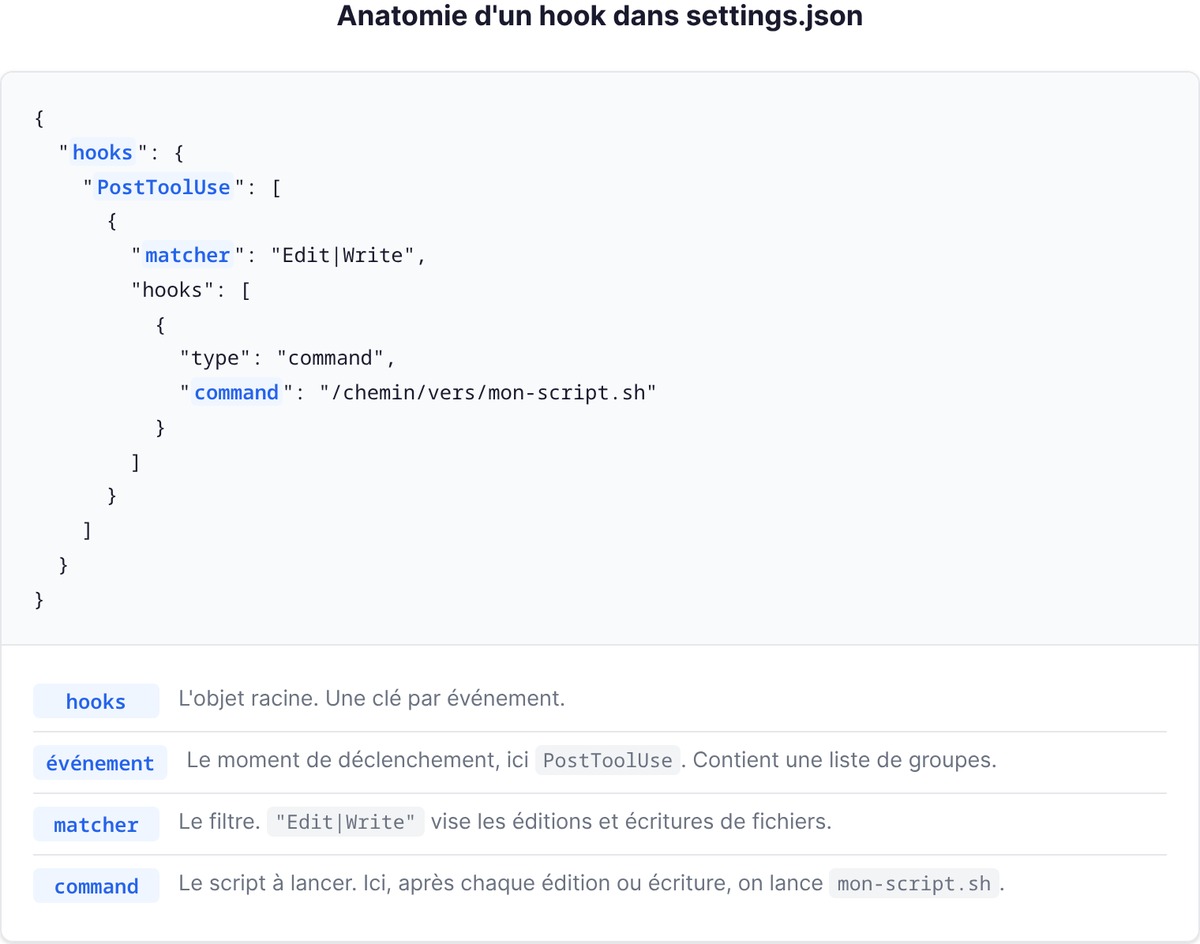
The structure is always the same. A hooks object, one key per event, and for each event a list of groups. Each group has a matcher (the filter) and a list of hooks (the scripts to run). The minimal skeleton:
{
  "hooks": {
    "PostToolUse": [
      {
        "matcher": "Edit|Write",
        "hooks": [
          {
            "type": "command",
            "command": "/chemin/vers/mon-script.sh"
          }
        ]
      }
    ]
  }
}
That hook says: after every file edit or write (Edit|Write), run mon-script.sh. That's it. Three ideas to grasp to go further: the matcher, the if field, and the exit codes.
Before that, one question always comes up: what exactly does my script receive? On standard input, a JSON object. For a tool event, it looks like this:
{
  "session_id": "abc123",
  "tool_name": "Bash",
  "tool_input": { "command": "rm -rf /tmp/build" },
  "cwd": "/home/vous/projet"
}
Your script picks out what it needs with jq. To grab the shell command: jq -r '.tool_input.command'. For the path of an edited file: jq -r '.tool_input.file_path'. That's the only thing you need to know to read the context of an event, and it's what all the scripts below do. The exact field names vary by event (a SessionStart doesn't receive the same data as a PreToolUse), but the principle never changes: JSON on stdin, which you read with jq.
Matchers: filtering precisely
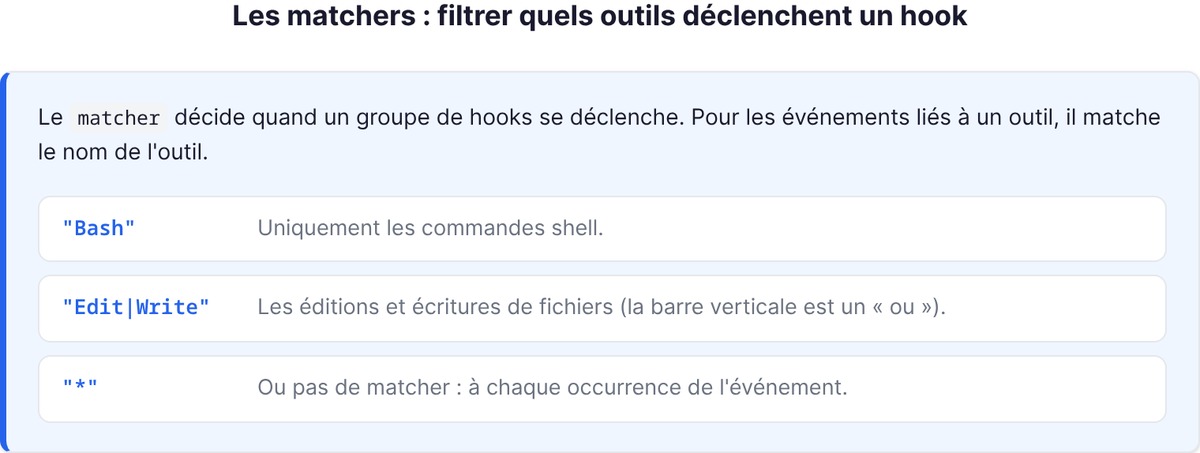
The matcher decides when a group of hooks fires. For tool-related events, it matches the tool name:
"Bash": shell commands only."Edit|Write": file edits and writes (the vertical bar is an "or")."*"or no matcher: on every occurrence of the event.
Some events (like UserPromptSubmit or Stop) don't take a matcher: they always fire. A matcher added there is simply ignored.
To filter even more precisely, there's the if field, which looks not only at the tool but at its arguments, in permission-rule syntax. "Bash(rm *)" only fires if the shell command is an rm. "Edit(*.ts)" only reacts to TypeScript files. That's what saves you from running a script on every command when you're only targeting one specific case, and it saves the cost of spinning up a process for nothing.
The exit codes to know
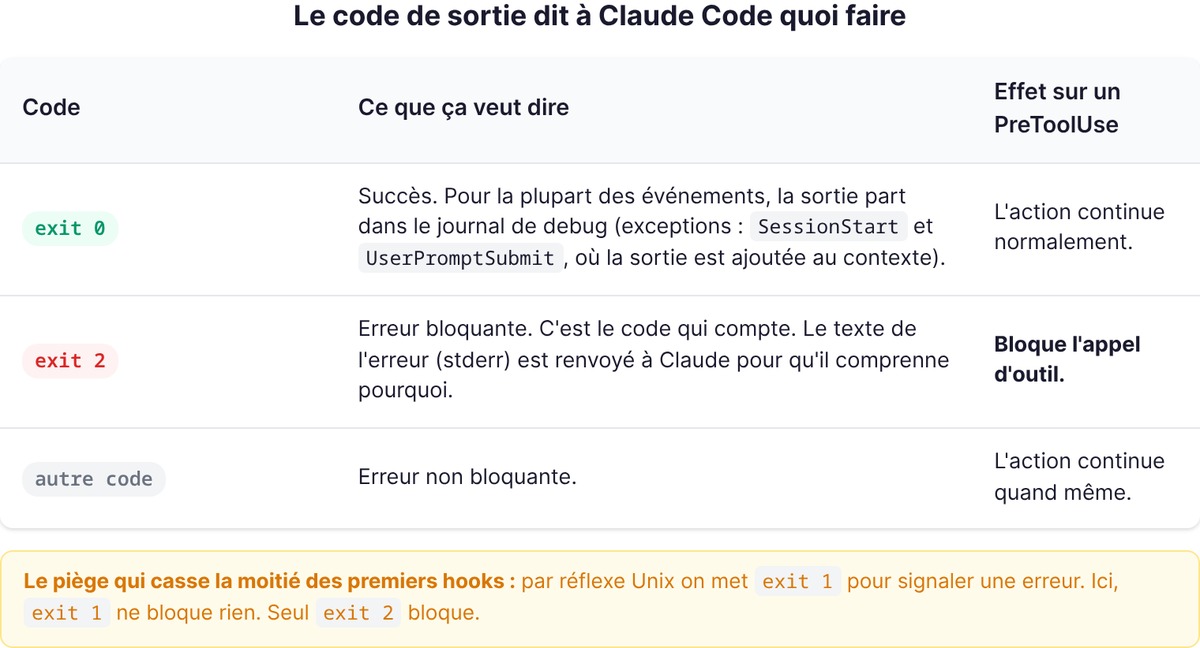
This is the point everyone misses, and yet it's the heart of the system. Your script's exit code tells Claude Code what to do:
- Exit 0: success. For most events, whatever your script writes goes to the debug log (the useful exceptions being
SessionStartandUserPromptSubmit, where the output is added to the context Claude sees). - Exit 2: blocking error. This is the code that counts. On a
PreToolUse, it blocks the tool call, and the error text (stderr) is sent back to Claude so it understands why. - Any other code: non-blocking error. The action continues anyway.
Remember this trap, because it breaks half of everyone's first hooks: exit 1 blocks nothing. By Unix reflex, you reach for exit 1 to signal an error. Here, only exit 2 blocks. If your hook is meant to enforce a rule, it's exit 2, otherwise Claude sails right past.
For finer control than a simple "block / let through," you can, on an exit 0, write structured JSON to standard output. That's what the block-rm hook below does: instead of relying on the exit code, it returns an object with a permissionDecision. That field accepts three values that cover every case: "deny" refuses the action and gives Claude the reason, "allow" authorizes it without asking permission again, and "ask" forces it through the usual permission request. This JSON is more expressive than exit codes, because it lets you not only decide but explain why, a message Claude reads and understands. For a PreToolUse, remember the rule: exit code 2 is the fast way to block, the permissionDecision JSON is the clean way to block with a reason.
5 hooks ready to copy
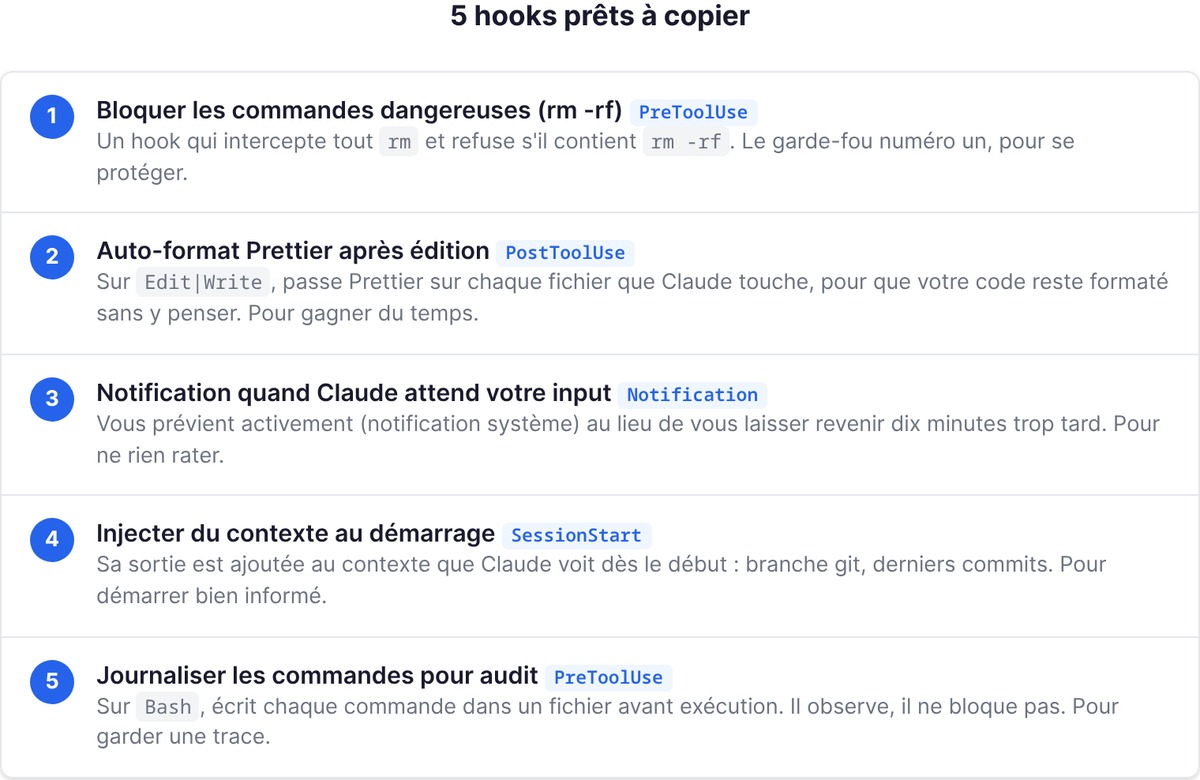
Enough theory. Here are five concrete hooks, each grounded in Claude Code's real mechanism. Copy the JSON into your settings.json, the script into .claude/hooks/ (remember to make it executable with chmod +x), adjust the path, and it runs. Each covers a real founder-dev need: one to protect yourself, one to save time, one to miss nothing, one to start well-informed, one to keep a record.
Block dangerous commands (rm -rf)
The number one guardrail. A PreToolUse hook that intercepts every rm and refuses if it contains rm -rf. The config, in .claude/settings.json:
{
  "hooks": {
    "PreToolUse": [
      {
        "matcher": "Bash",
        "hooks": [
          {
            "type": "command",
            "if": "Bash(rm *)",
            "command": "${CLAUDE_PROJECT_DIR}/.claude/hooks/block-rm.sh"
          }
        ]
      }
    ]
  }
}
The block-rm.sh script reads the command on standard input and refuses if it's destructive:
#!/bin/bash
COMMAND=$(jq -r '.tool_input.command')

if echo "$COMMAND" | grep -q 'rm -rf'; then
  jq -n '{
    hookSpecificOutput: {
      hookEventName: "PreToolUse",
      permissionDecision: "deny",
      permissionDecisionReason: "Commande destructrice bloquée par un hook"
    }
  }'
else
  exit 0
fi
When Claude attempts an rm -rf, the hook returns a deny decision, the call is blocked, and Claude sees the reason. When it's a harmless rm fichier.txt, the script does exit 0 and lets the normal permission flow apply. Note the important nuance: the hook can refuse, but staying silent doesn't approve. It blocks or it stays quiet, it never validates on your behalf.
Auto-format with Prettier after an edit
The hook that saves you time every day. A PostToolUse on Edit|Write that runs Prettier over every file Claude touches, so your code stays formatted without you thinking about it:
{
  "hooks": {
    "PostToolUse": [
      {
        "matcher": "Edit|Write",
        "hooks": [
          {
            "type": "command",
            "command": "${CLAUDE_PROJECT_DIR}/.claude/hooks/format.sh"
          }
        ]
      }
    ]
  }
}
The script grabs the path of the edited file from the JSON and formats it:
#!/bin/bash
FILE=$(jq -r '.tool_input.file_path')

if [ -n "$FILE" ] && [ -f "$FILE" ]; then
  npx prettier --write "$FILE"
fi
exit 0
No more "oops, I forgot to format." The hook handles it, on every edit, no exceptions. The same structure works for anything that should run after an edit: swap prettier for eslint --fix to lint, for black if you're in Python, or chain several commands. The key point is the Edit|Write matcher, which precisely targets the moment a file has just changed.
Notification when Claude is waiting on you
You launch Claude on a long task, you head off to do something else, and you come back ten minutes too late because it's been waiting on a permission the whole time. A Notification hook fixes that by actively alerting you:
{
  "hooks": {
    "Notification": [
      {
        "hooks": [
          {
            "type": "command",
            "command": "osascript -e 'display notification \"Claude a besoin de vous\" with title \"Claude Code\"'"
          }
        ]
      }
    ]
  }
}
On macOS, this fires a system notification. On Linux, replace it with notify-send "Claude Code" "Claude a besoin de vous". You no longer watch the terminal, it calls you when it needs you. This hook changes how you work with Claude on long tasks: you launch it, you move on to something else, and you come back right when you're needed, instead of going back and forth to check whether it's finished or stuck. For a founder juggling code and ten other hats, reclaiming those minutes lost watching a terminal is no small thing.
Inject context at startup
A SessionStart hook whose output is added to the context Claude sees right from the start. Handy for giving it the project state without typing it out every time:
{
  "hooks": {
    "SessionStart": [
      {
        "hooks": [
          {
            "type": "command",
            "command": "echo \"Branche: $(git branch --show-current) | Derniers commits: $(git log --oneline -3)\""
          }
        ]
      }
    ]
  }
}
On every session, Claude starts out knowing which branch you're on and what was done recently. This is one of the few events (along with UserPromptSubmit) where the hook's output genuinely feeds Claude's context, not just the debug log. You can push it further: inject open tickets, the list of tasks in progress, the staging URL, a convention worth repeating. Anything you retype at the start of every session is a good candidate. Just keep it concise, this context takes up space: put the essentials, not a novel.
Log commands for audit
The fifth, quiet but valuable when you want a record. A PreToolUse on Bash that writes every command to a file before execution:
{
  "hooks": {
    "PreToolUse": [
      {
        "matcher": "Bash",
        "hooks": [
          {
            "type": "command",
            "command": "jq -r '.tool_input.command' >> ~/.claude/bash-audit.log"
          }
        ]
      }
    ]
  }
}
You keep a log of everything Claude has run in your shell. The day something goes sideways, you know exactly what. And because the script doesn't return exit 2, it never interferes with execution: it observes, it doesn't block. For a more usable log, add a timestamp to each line, for example by prefixing the date: echo "$(date -Iseconds) $(jq -r '.tool_input.command')" >> ~/.claude/bash-audit.log. You get a complete chronological record, valuable for a post-mortem or simply to understand how Claude solved a task.
Hooks as production guardrails (the founder angle)
Here's what separates a founder who sleeps soundly from a founder who checks their terminal in a panic. When you let an AI agent act on your machine, the question isn't "will it go well," it's "what happens the day it goes wrong." Hooks are your answer to that question, because they turn rules you hope are respected into rules that are enforced.
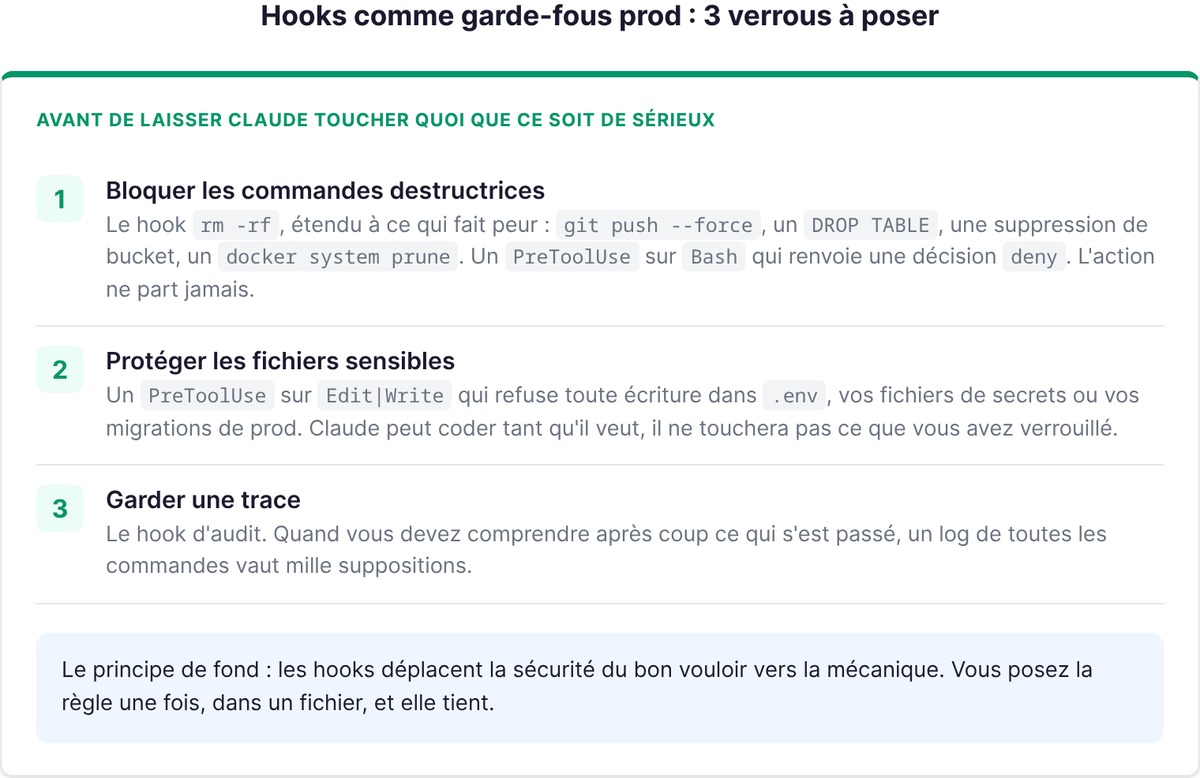
Three guardrails I'd put in place before letting Claude touch anything serious:
- Block destructive commands. The
rm -rfhook above, extended to whatever scares you:git push --forceoverwriting remote history, aDROP TABLEon your database, a bucket deletion, adocker system prune. The logic doesn't change: aPreToolUseonBash, and in the script agrepon the forbidden patterns that returns adenydecision. You can bundle everything into a single "blocklist" hook that refuses a handful of commands you never want to see go through under any pretext. The action never leaves, and you didn't have to watch. - Protect sensitive files. A
PreToolUseonEdit|Writethat refuses any write to.env, to your secrets files, or your production migrations. Claude can code all it wants, it won't touch what you've locked down. The script fits in a few lines:
#!/bin/bash
FILE=$(jq -r '.tool_input.file_path')

case "$FILE" in
  *.env|*/secrets/*|*/migrations/prod/*)
    jq -n '{
      hookSpecificOutput: {
        hookEventName: "PreToolUse",
        permissionDecision: "deny",
        permissionDecisionReason: "Fichier protégé: édition interdite par un hook"
      }
    }'
    ;;
  *)
    exit 0
    ;;
esac
Wired to a PreToolUse with the "Edit|Write" matcher, this hook makes your critical files untouchable by the agent, without stopping you from editing them yourself. It's the kind of lock you set once and forget, until the day it saves you from a rewritten secret or a production migration changed by mistake.
3. Keep a record. The audit hook. When you need to figure out after the fact what happened, a log of every command is worth a thousand guesses.
The underlying principle, and this is what makes hooks so well-suited to a solo founder: they move security from goodwill to mechanics. You no longer need to trust the model to respect an instruction. You no longer need to reread every command before it goes out. You set the rule once, in a file, and it holds. That's exactly the kind of net you install when you build tools for founders: automate what should be automated, lock down what must never break, and free your head for the rest.
One last usage tip, because a badly built hook can turn against you. A PreToolUse hook runs before every relevant tool call: if it's slow, it slows down your whole session. Keep your scripts fast and targeted, use the if field to fire them only on the cases that matter, and test them separately before wiring them in (a hook that crashes with an accidental exit 2 will block Claude for no reason). Start with a single hook, the one that protects you most (blocking destructive commands), check that it does its job well, then add the others one by one. A guardrail you understand beats ten you copied without testing.
A Claude Code session without a hook is a fast car without a seatbelt. It drives just fine, until the day it doesn't.
Going further
FAQ
What is a hook in Claude Code?
A hook is a shell command that runs automatically at a precise moment in a Claude Code session: before a tool (PreToolUse), after (PostToolUse), at startup (SessionStart), or on a notification. You configure it in a settings.json file. Unlike an instruction given to Claude, a hook is deterministic: it fires every time, without depending on the model's judgment.
What's the difference between PreToolUse and PostToolUse?
PreToolUse fires before a tool runs: it's the only moment where you can block an action (by returning a deny decision or exit code 2). PostToolUse fires after a tool has succeeded: it's the moment to react, for example to format the file that was just edited or run a lint. One prevents, the other cleans up.
How do you configure a hook in settings.json?
Add a hooks object to your settings.json, with one key per event. Each event contains a list of groups, each with a matcher (the filter, for example "Bash" or "Edit|Write") and a list of command-type hooks. Place the file in .claude/settings.json for a setting shared with the team, or ~/.claude/settings.json for a personal one.
How do you block a dangerous command with a hook?
Use a PreToolUse hook with a "Bash" matcher and a targeted if field like "Bash(rm *)". The script reads the command on standard input and returns a permissionDecision: "deny" decision (or does exit 2) if the command is dangerous. Claude Code then blocks the call and shows Claude the reason. Careful: exit 1 doesn't block, only exit 2 (or a deny decision) does.
What are hooks really for, for a founder?
Two things: automating (formatting, linting, logging, notifying without thinking about it) and securing (blocking destructive commands, protecting sensitive files). Their real strength is the guarantee: where an instruction in a CLAUDE.md is respected "most of the time," a hook applies every single time. That's what lets you let an AI agent act without watching every command.
Do hooks slow down Claude Code?
They can, if you write them badly. A PreToolUse hook runs before every tool call that matches its matcher: if it's slow, it adds that delay to every action. The fix is simple: keep your scripts fast, target with the if field to fire them only on the useful cases, and avoid running a hook on "*" (all tools) if a precise matcher will do. A well-targeted hook is imperceptible.
Can you use hooks with MCP servers?
Yes. The tools exposed by your MCP servers appear as normal tools in events like PreToolUse and PostToolUse, in the form mcp__serveur__outil. So you can match them: mcp__github__.* targets all the tools of the GitHub server, for example to log or validate every operation. The thing to watch: to match all the tools of a server, be sure to add .* after its name, otherwise the matcher is compared as an exact string and matches nothing.